.png?width=180&height=55&name=welbi_logo_colour%20(6).png)
Accessing the Community Portal
-
From the left-hand navigation in Welbi, select Community Portal.
-
You will see two sections:
-
Residents – Manage invitations and login access
-
Settings – Control portal visibility and permissions
-
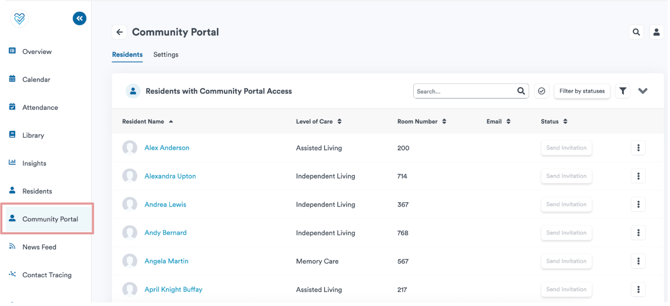
Residents Tab: Inviting and Managing Access
The Residents tab is where you manage who can access the Community Portal.
Resident List Overview
The resident list is searchable and filterable. For each resident, you can see:
-
Whether an email address is on file
-
Invitation status
-
Last login date (if applicable)
-
Available actions (invite, resend invitation, reset password, revoke access)
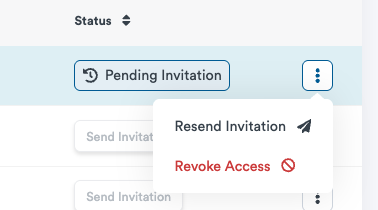
Invitation Statuses
Residents may appear in one of the following states:
-
None
No invitation has been sent.
If a resident does not have an email address, invitation actions will be disabled. -
Pending
An invitation has been sent but not yet accepted. -
Expired
The invitation has expired. Select Resend Invitation to send a new one. -
Active
The resident has logged in. The last login date will be displayed.
If a resident has trouble accessing the portal, staff can reset their password from this screen.
Adding or Updating a Resident’s Email Address
Residents must have an email address on file to receive an invitation.
To add or update an email:
-
Open the resident’s profile
-
Go to Email Address
-
Enter or update the email address
-
Updates in the profile save automatically
-
Return to the Community Portal to send an invitation
If an email address is changed, a new invitation must be sent. Residents will continue to see the same Community Portal information after logging in with their new email.
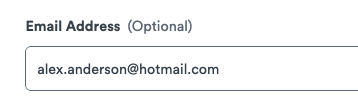
Email Syncing from PointClickCare (if enabled)
Welbi supports syncing resident email addresses from PointClickCare.
When email syncing is enabled:
-
Email addresses automatically populate in Welbi
-
Email fields are read-only in Welbi
-
Updates must be made in PointClickCare
This helps ensure consistent information across systems. If email syncing is not enabled, email addresses can be entered manually in Welbi.
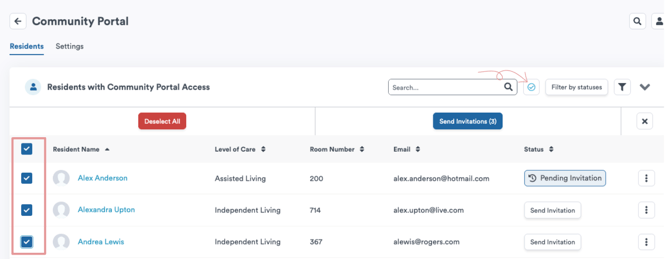
Sending Bulk Invitations
You can invite multiple residents at once using bulk invitations.
Notes:
-
Only residents with an email address can be selected
-
Residents who have already been invited cannot be selected
This option is designed specifically for sending invitations, not for managing existing access.
Filtering Residents
Use filters to quickly find residents by:
-
Invitation status (None, Pending, Expired, Active)
-
Level of care
Settings Tab: Controlling Portal Visibility
The Settings tab controls what residents and Care Circle members can see in the Community Portal. Note that you'll need to have a 'Welbi Admin' user role to access and configure settings.
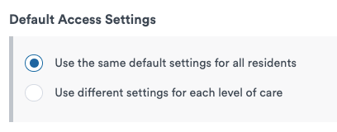
Default Access Settings
You can choose to:
-
Apply the same settings to all residents, or
-
Use different settings for each level of care
When using level-of-care settings, permissions are configured separately for each level.
Configuring Access for Residents and Care Circle Members
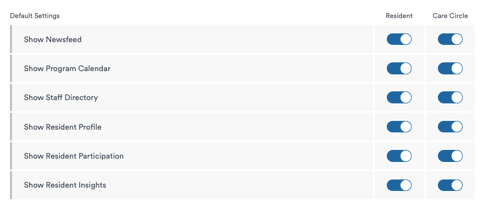
Permissions are set independently for:
-
Residents
-
Care Circle members
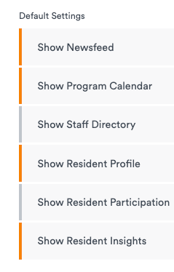
You can control access to features such as:
-
Newsfeed
-
Program Calendar
-
Program Registration
-
Staff Directory
-
Apps
-
Resident Profiles
-
Engagement and Insights
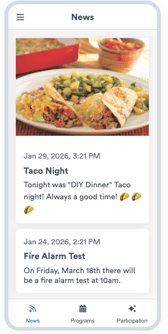
As you make changes:
-
Modified settings are highlighted
-
A live preview updates to show what each role will see
Example Configuration Scenarios
-
Independent Living
Residents may see calendars and registration, while Care Circle members see only the newsfeed. -
Long-Term Care
Residents may have no portal access, while Care Circle members retain full visibility.
This flexibility allows communities to align portal access with care needs and privacy preferences.
Saving Your Settings
Changes take effect immediately once you select Save. A summary of updates is shown before saving.
Important Things to Know
Permissions Are Set by Level of Care
Permissions cannot be customized for individual residents. All residents within the same level of care share the same settings.
Level of Care Changes Update Access Automatically
If a resident moves to a different level of care, their Community Portal access will automatically update to match the settings for that level.
Need Help?
If you have questions about Community Portal access or settings, please contact your Welbi support team.