.png?width=180&height=55&name=welbi_logo_colour%20(6).png)
When you may see this
You may be prompted to merge residents if:
-
A resident was added manually and then later synced from an EHR (eg. PointClickCare, MatrixCare)
- A resident was added manually into Welbi twice (without an EHR)
Welbi will only suggest a merge when it detects that two residents may be the same person (they must have an identical first + last name and date of birth).
What merging residents does
When you merge two residents:
-
Welbi creates one combined resident profile
-
Information from both profiles is preserved
-
One profile becomes the primary record
-
The duplicate profile is removed from the active resident list
Important: Merging residents cannot be undone.
Please review carefully before confirming.Please note: A user needs Welbi Admin permissions in order to access the Merge Residents Tool.
How to merge duplicate residents
Step 1: Review the residents
Go to Settings, Residents, and then select the Merge Residents tab. From there, you can select the duplicate resident(s) you would like to merge.
Please note that for residents to appear in this section, the following profile fields in both profiles must be identical:
- First Name
- Last Name
- Date of Birth
If you are not seeing residents in the Merge Residents section and you know there are duplicates, confirm that the fields above match exactly. If they do not, update the resident profiles and return to the Merge Residents tab.
Tip: In some cases, a resident that was manually added may have an extra space at the end of their first or last name. Even though the names appear identical, the additional space prevents the system from recognizing them as duplicates.
To check for this:
- Open the manually added resident's profile.
- Click into the First Name and Last Name fields and check for any extra spaces at the end of the name.
- Delete any trailing spaces.
- Click outside the field to save the change.
- Return to the Merge Residents tab and check again.
Once the extra space has been removed, the duplicate residents should appear and can be merged.
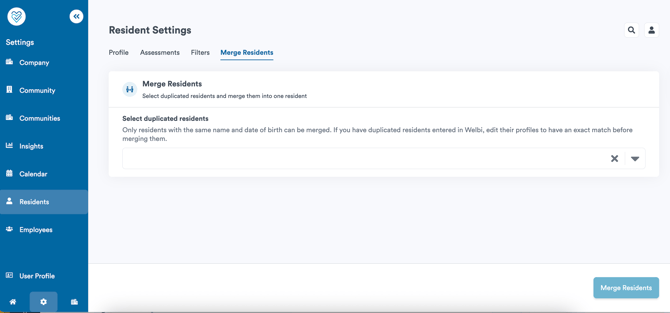
Once you select your resident, you will see the two resident profiles side by side.
Before continuing:
-
Confirm both profiles belong to the same individual
-
Review key details such as name and date of birth, level of care/home area, move in date, etc.
Step 2: Choose which profile to keep
You’ll be asked to select which profile should be kept as the main record.
We recommend choosing the profile with:
-
More completed profile questions
-
More engagement history
-
More accurate or up-to-date information
If some information differs between the two profiles, you’ll be able to review it before completing the merge.
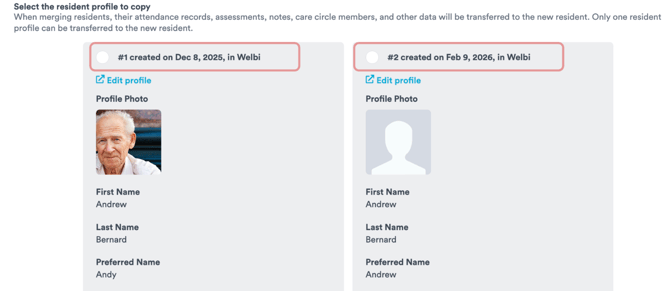
Step 3: Confirm the merge
Once you confirm:
-
The profiles are merged into a single resident record
-
The action cannot be reversed
After merging, the resident will appear once in your resident list.
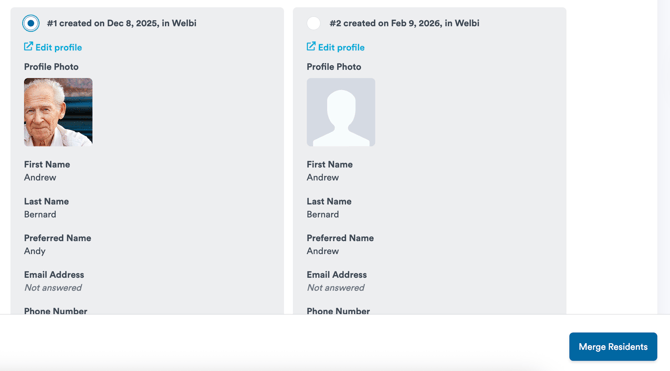
After the merge
Once merged:
-
The resident’s profile will reflect the combined information
-
Engagement history and attendance will remain intact
-
You can continue using Welbi as usual for that resident
If your community uses an external system (such as an EHR), some resident information may continue to update automatically.
If you’re not sure what to do
If you’re unsure whether two residents should be merged:
-
Leave them unmerged for now
-
Contact your Welbi support team for guidance