.png?width=180&height=55&name=welbi_logo_colour%20(6).png)
Before You Begin
-
Community Portal must be enabled for your community
-
You must have Team Member – Enhanced or Welbi Admin permissions
-
The resident must have a valid email address
Steps to Add a Resident to the Community Portal
-
Open the resident’s profile
From the Residents page, click into the resident you would like to add to the Community Portal.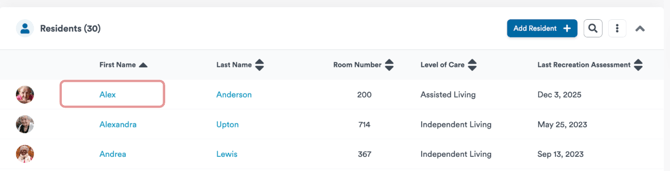
-
Go to the Care Circle tab
Select the Care Circle tab within the resident’s profile.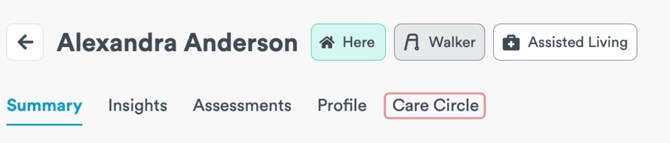
-
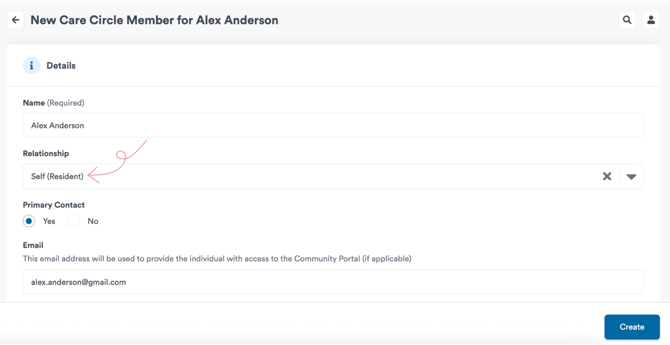
Add the resident as a Care Circle member
-
Enter the resident’s information
-
Set Relationship to Self
-
Enter the resident’s email address (this will be used as their portal login)
-
Optional: add a phone number
-
-
Configure Community Portal settings
In the Community Portal Settings section:-
Select Yes for Grant Community Portal Access
-
Select Yes for Community Portal Admin
-
Enable Act as Resident
Tip: Making the resident a Community Portal Admin allows them to manage their own Care Circle and invite or remove family members in the portal.
-
-
Save and send the invite
Click Create to save.
The resident will receive an email invitation with instructions to set their password and log into the Community Portal.
What Happens Next
-
The resident can log in via community.welbi.com
-
If designated as an admin, they can invite additional family members themselves
-
Staff can view invite status and resend invitations from the Care Circle at any time
Notes
-
If multiple residents share the same email address, they will share one login and be able to toggle between resident profiles
-
Removing a resident’s portal access must be done by staff in Welbi via the Care Circle