.png?width=180&height=55&name=welbi_logo_colour%20(6).png)
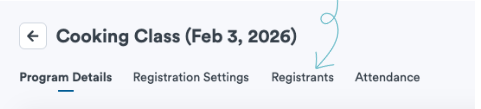
Step 1: Open the Registrants List
-
Click the program on your Calendar
-
Select the Registrants tab
Step 2: Register Residents Manually
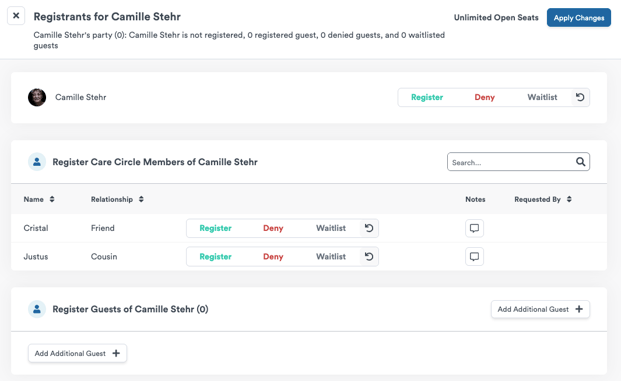
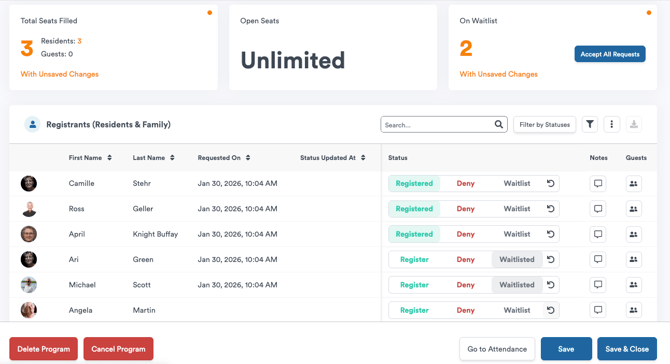
Until residents can self-register, staff can:
-
Register residents, guests, and care circle members
-
Waitlist residents, guests, and care circle members
-
Deny registrations
Changes appear in orange until you click Save.
Note: Automatic emails (registered, waitlisted, denied)are sent only after you save changes.
Step 3: Manage Capacity and Waitlists
-
View filled seats, open seats, and waitlist count
-
Enable or disable waitlists (depending on registration type)
-
Manually move residents from the waitlist when needed

Step 4: Track Payment Status (Optional)
For programs requiring payment:
-
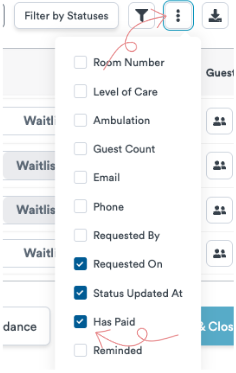
Enable Has Paid tracking by clicking on the square icon with three dots and checking the column
-
Mark payment status per resident
-
No payments are processed in Welbi, this is more for your team to keep track of payment status
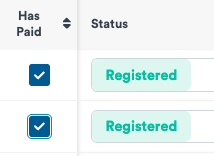
Note, you must enable 'Payment Status' in registration settings in order to enable it on the registrants page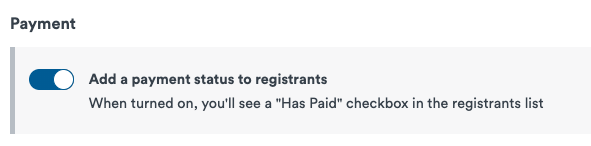
Step 5: Update or Remove Registrations
You can:
-
Unregister residents who can no longer attend
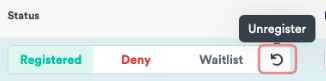
-
Deny registrations with a reason
-
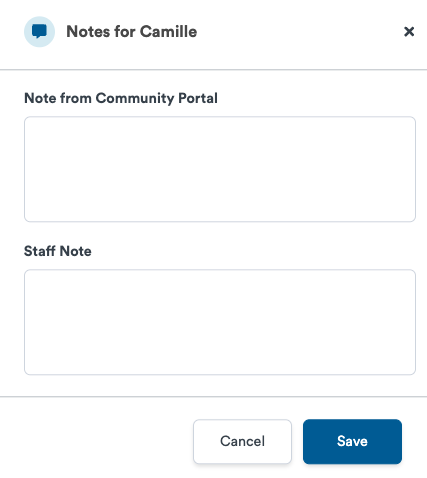
Add staff or community portal notes (note that registrations for programs is not enabled yet in the community portal so for now, you can use staff notes to record internal notes)
Important Notes
-
Registration does not replace attendance
Attendance must still be documented after the program -
Large events can use “Mark All Attended” during attendance
When to Use Registrations
Registrations work best for:
-
Outings
-
Limited-space programs
-
Ticketed events
-
Meal planning and headcounts