.png?width=180&height=55&name=welbi_logo_colour%20(6).png)
Before You Begin
- Registrations must be enabled for your community
-
Programs must already be added to your calendar
-
You must have Team Member – Enhanced or Welbi Admin permissions
Step 1: Set Default Registration Windows (Optional)
You can set default registration open and close windows so they automatically apply to new programs.
-
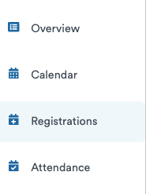
Go to Calendar
-
Select the Registrations tab
-
Choose when registrations should:
-
Open (e.g. X days before the program or before the month begins)
-
Close (e.g. at program start or several days before)
-
-
Click Save
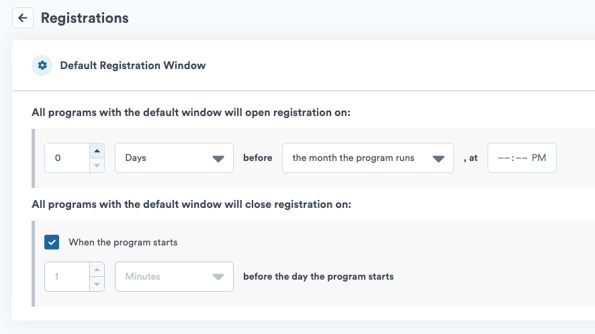
Tip: Defaults can be overridden for individual programs when needed.
Step 2: Add a Program With Registration
-
Open your Calendar
-
Click the + icon or select a date
-
Choose a program template or type in the name of the program
-
Confirm program details (time, location, facilitator, etc.)
-
Click Next (instead of Create)

Step 3: Select a Registration Type
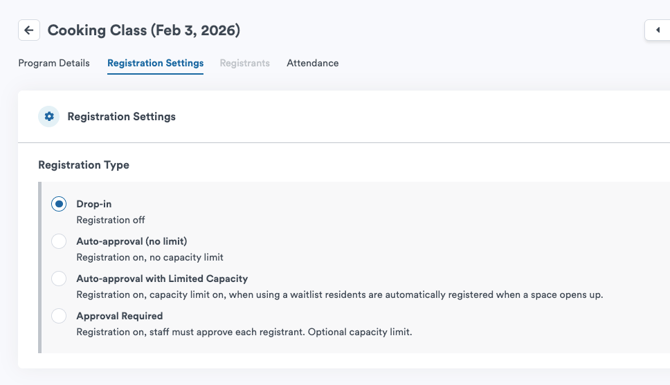
Choose one of the following registration options:
Drop-In (Default)
-
No registration required
-
Residents attend freely
Auto-Approval (No Capacity Limit)
-
Registration required
-
Unlimited seats
-
Registrants are approved automatically
Auto-Approval (Limited Capacity)
-
Registration required
-
Seat limit enforced
-
Optional waitlist
-
Residents move automatically from waitlist if space opens
Approval Required
-
Staff approve or deny each registration
-
Best for:
-
Ticketed events
-
Accessibility requirements
-
Paired or grouped registrations
-
Step 4: Configure Registration Settings
Depending on the registration type, you may configure:
-
Capacity limits
-
Waitlist settings
-
Registration open/close window
-
Payment tracking (status only)
You can also add:
-
Internal note (staff-only)
-
Note for Registrants (visible in the Community Portal once registrations are released)
Step 5: Save the Program
Click Save & Close to add the program to your calendar with registrations enabled.
Best Practices
-
Use registrations only when needed
-
Leave most recurring programs as Drop-In
-
Use Approval Required when staff need full control