.png?width=180&height=55&name=welbi_logo_colour%20(6).png)
Community Portal users can view contact information for members of your team in the Staff Directory section of the Community Portal.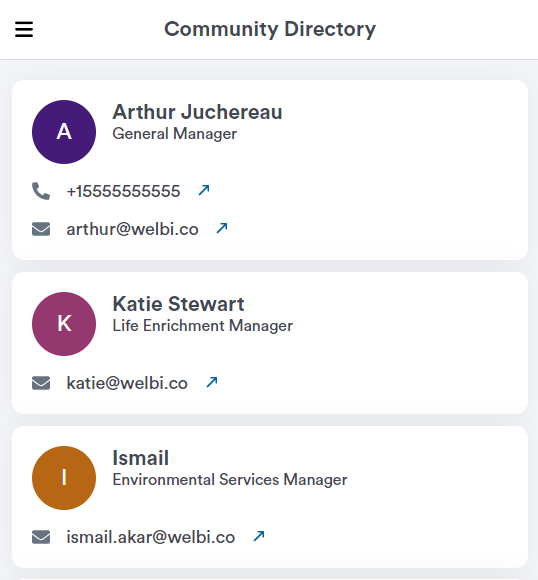
You have total control over which team members appear in the Staff Directory, as well as the contact information that appears for each team member.
Note that individuals must have a Welbi user account in order to appear in the Staff Directory. If you wish to list someone in the Staff Directory who does not already have a Welbi user account, you can invite them to create an account by following these steps.
To add a team member to the Staff Directory section of the Community Portal:
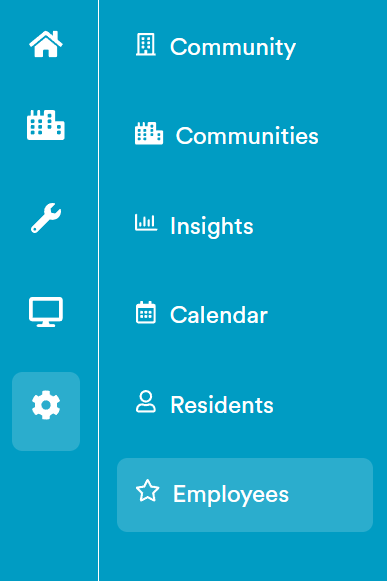
- Navigate to your Welbi Settings and click Employees
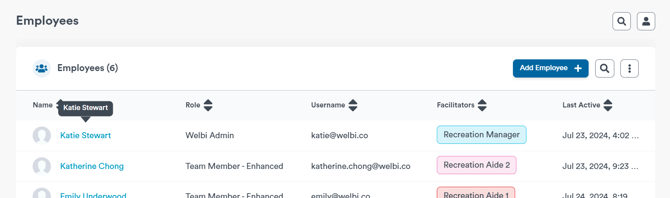
- Click on the name of the person you wish to add to your Staff Directory
- Click Edit in the top left corner of the Personal Info panel
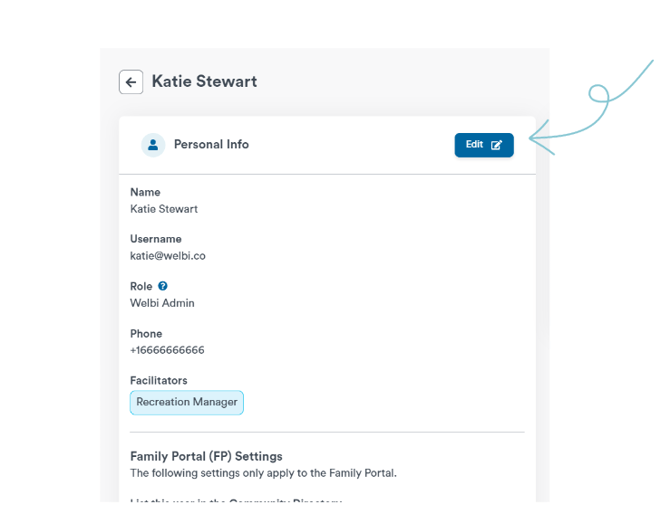
- Scroll down to the Community Portal Settings section of the panel and update the following fields:
- List this user in the Staff Directory: 'Yes'
- Contact method(s) to display: choose whether you'd like to display the individuals email, phone number, or both. You can edit their email address
- Community Portal Role: enter their title/role as you'd like it to appear in the Staff Directory (it will appear right under their name)
- Order: the order in which you'd like this person to be listed in the Staff Directory (i.e., 1 = first, 2 = second, 3 = third)
- Click Save in the top left corner of the Personal Info panel