.png?width=180&height=55&name=welbi_logo_colour%20(6).png)
What You’ll Need
-
A device with a microphone (phone, tablet, Chromebook, or computer)
-
Access to the resident’s Assessment tab in Welbi
-
Resident consent to record the conversation
Where to Find Voice Assessments
-
Go to Residents
-
Select a resident
-
Click the Assessments tab
-
Choose Start (new assessment) or Continue (in-progress assessment)

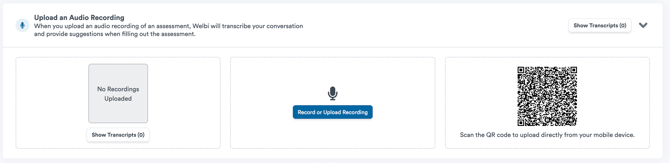
5. At the top of the assessment page, you’ll see options to record or upload audio.
Option 1: Record Directly in Welbi
-
In the assessment, select Record or Upload Audio
-
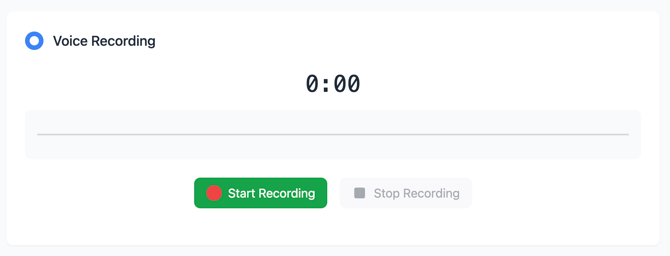
Allow microphone access when prompted. Click Start Recording.
-
Have your assessment conversation with the resident.
- You can select 'Pause' and 'Resume' as needed throughout the conversation.
-
Click Stop Recording when finished
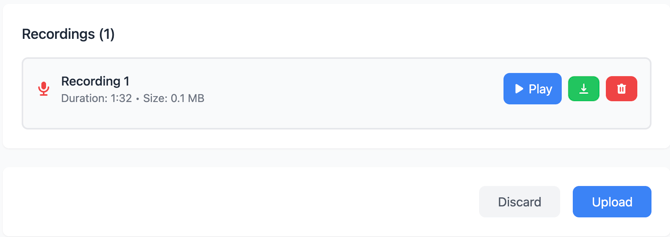
- You can decide to 'Play' to listen to the recording, download the recording, or delete if needed. If you would like to keep the recording, select 'Upload'. You can upload multiple recordings if needed. Keep the tab open until upload completes.
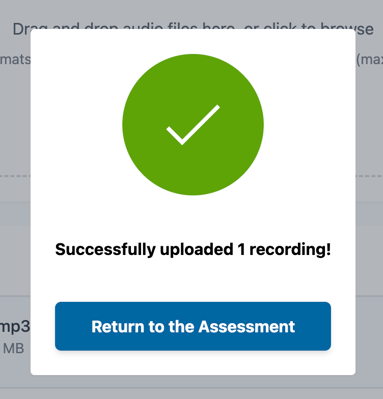
7. Once the upload is complete, you can then select 'Return to the Assessment'.
Option 2: Upload a Saved Audio Recording
This option is helpful if you recorded the conversation on a phone or tablet earlier.
Upload from a computer
-
Select Record or Upload Audio. Scroll to the bottom.
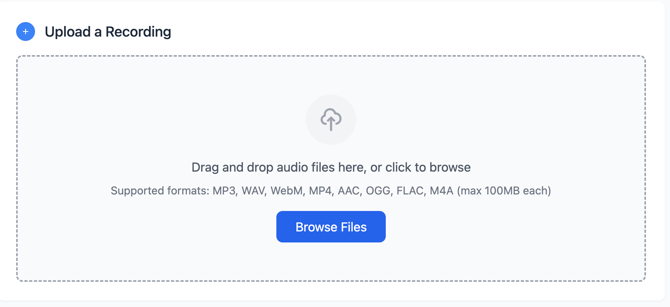
2. Click Browse Files
3. Choose your saved audio file.
4. Click Upload.
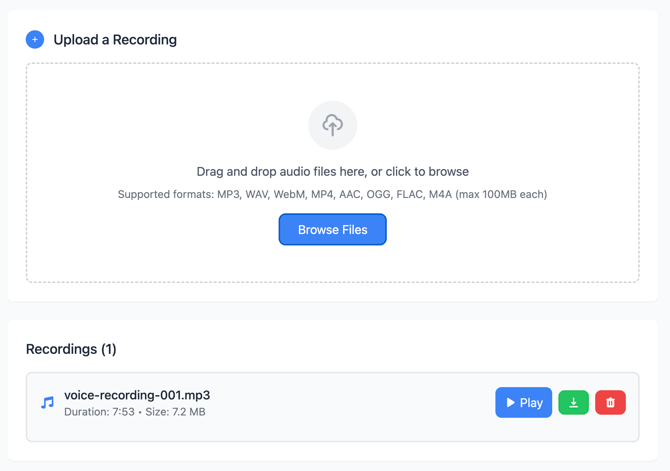
5. You can decide to 'Play' to listen to the recording, download the recording, or delete if needed. If you would like to keep the recording, select 'Upload'. You can upload multiple recordings if needed. Keep the tab open until upload completes.
6. Once the upload is complete, you can then select 'Return to the Assessment'.
Upload from a mobile device (QR code)
-
Scan the QR code using your phone
-
Upload the audio file from your device
-
You can decide to 'Play' to listen to the recording, download the recording, or delete if needed. If you would like to keep the recording, select 'Upload'. You can upload multiple recordings if needed. Keep the Welbi tab open until processing finishes.
- Once the upload is complete, you can then select 'Return to the Assessment'.
Reviewing the Transcript
After upload:
-
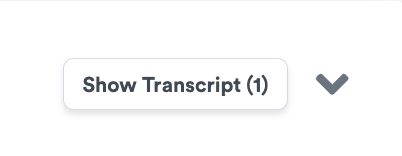
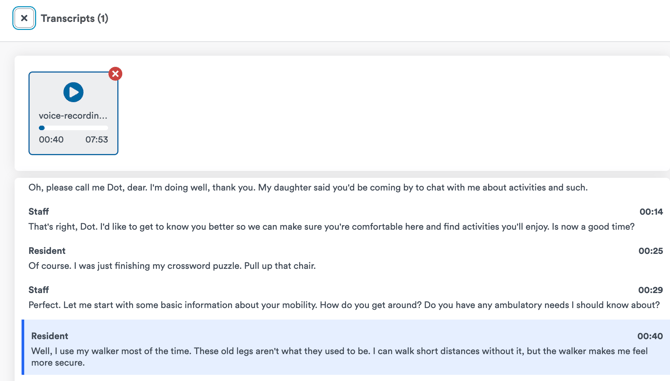
Click Show Transcript to review the conversation
-
You can:
-
Read the transcript
-
Play the audio recording
-
Confirm you uploaded the correct file
-
- The Transcript will be stored in the assessment it was uploaded to, should you wish to review it at any point.
Using Suggested Answers
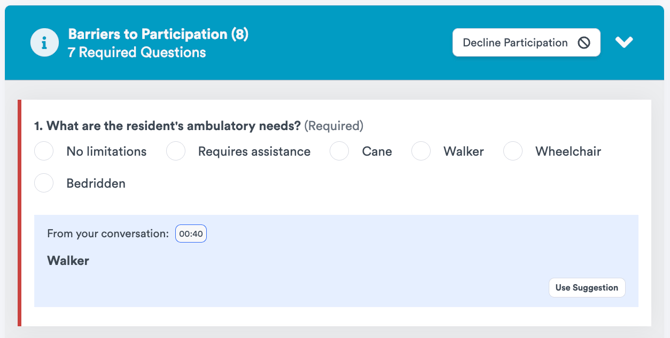
Based on the transcript, Welbi will suggest answers for assessment questions.
How to review suggestions
-
Each suggested answer includes a timestamp
-
Click the timestamp to jump to the exact moment in the transcript where it was mentioned
-
Confirm accuracy before accepting.
Accepting or editing suggestions
-
Click Use Suggestion to apply it.
-
You can also skip suggestions and enter answers yourself
Welbi supports you — but you are always the decision-maker.
For 'Plans' in Assessments:
Welbi may suggest:
-
Participation barriers
-
Engagement opportunities
-
Important notes about the resident
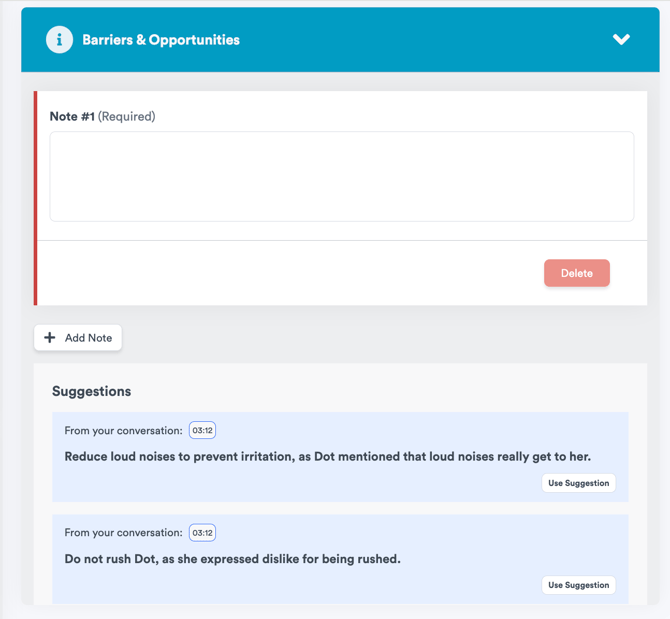
You can:
-
Accept suggestions
-
Edit wording
-
Add your own notes
These appear later in the resident’s Summary tab for quick reference.
Publishing the Assessment
-
Confirm all required questions are complete
-
Click Publish
-
Choose Assessment Publication Date
-
Once published:
-
The assessment is saved to the resident’s history
-
Helpful Tips
-
You can upload multiple recordings if the conversation happens in parts
-
Audio recordings remain accessible through assessment revisions
Note: If you wish to enable this feature, please reach out to your Customer Success Team. If you have any questions, please don’t hesitate to reach out — we’d be happy to connect and hear your feedback.