.png?width=180&height=55&name=welbi_logo_colour%20(6).png)
If you notice the "Publish" button in the bottom right corner of the screen is greyed out (i.e., you are unable to proceed with publishing the assessment), this either means there are responses that have not been confirmed or that you have assessment "plans" that haven't been populated.
Ensure All Questions Are Answered and Confirmed
In order for an assessment to be published, any questions marked as 'Required' must be answered.
Any questions not marked as 'Required' can be left blank. Once a required question is answered, you'll notice the red line turns blue, indicating the answer has been logged.
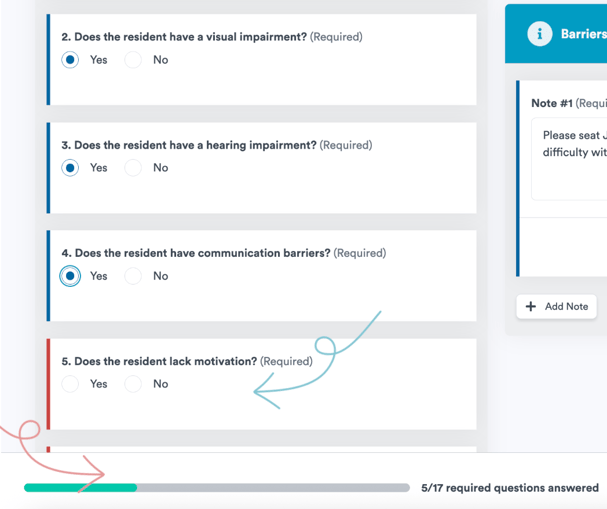
Each assessment section lets you know the number of questions that are required in that section. Reviewing that and the bar along the bottom, can help you keep track of all required questions that must be answered.
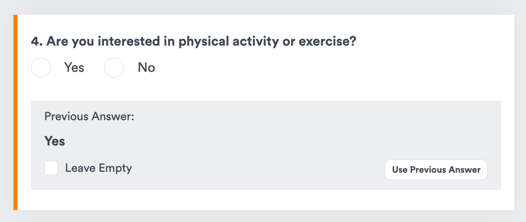
When completing a second, third, or subsequent assessment, optional questions may display an orange sidebar if they were answered in a previous assessment.
For each of these questions, you must take action by selecting a new answer, choosing the previous answer, or checking the Leave Empty box before continuing.
Ensure All "Plans" Have Been Populated
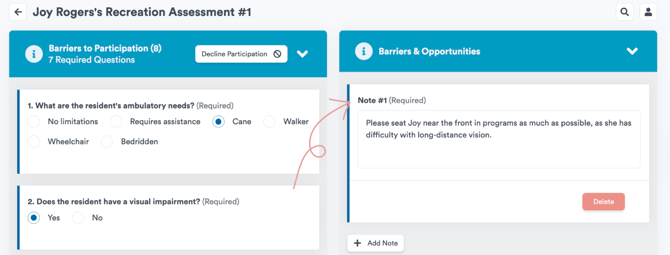
Depending on your company's set up in Welbi, you may have "plans" that appear on the right hand side of the screen.
Assessment plans allow your team to summarize key findings, goals, or plans for the resident based on the answers to the assessment questions. Once published, plans appear on the resident's Summary tab.
If your assessments include "plan" sections, these must be populated in order to proceed with publishing the assessment.