.png?width=180&height=55&name=welbi_logo_colour%20(6).png)
Program Templates keep your programs consistent, but sometimes details change: a new location, an updated description, or a different duration. Instead of editing every upcoming program individually, you can update the Template once and apply the changes across your calendar.
To apply Template changes to your calendar:
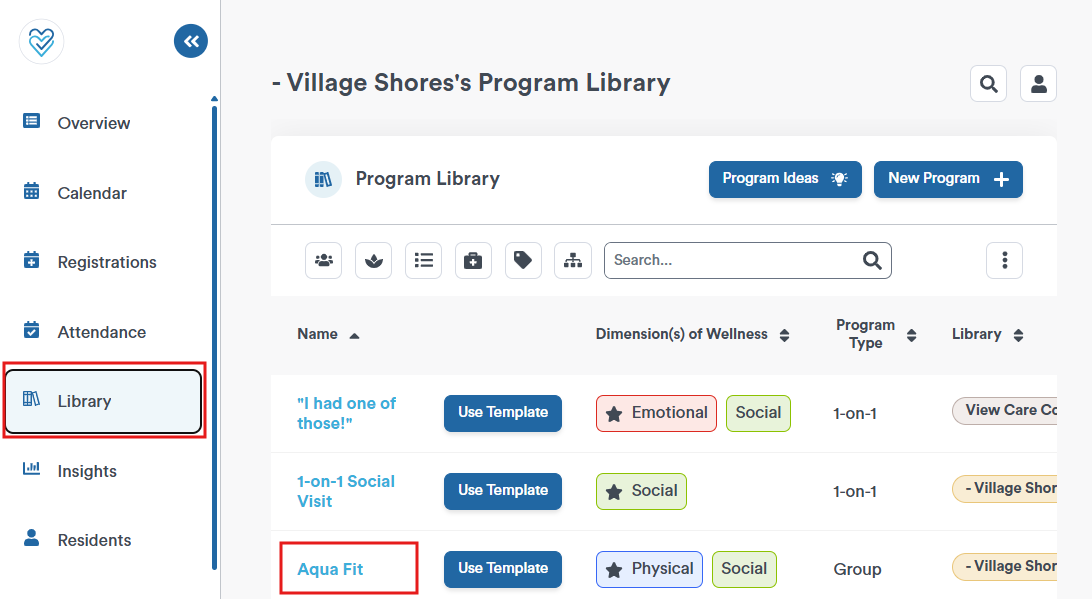
- Click Library in the navigation bar on the left-hand side of your screen.
- Find the Program Template you'd like to update and open it.
- On the Program Template that has already been used in your calendar, click Edit
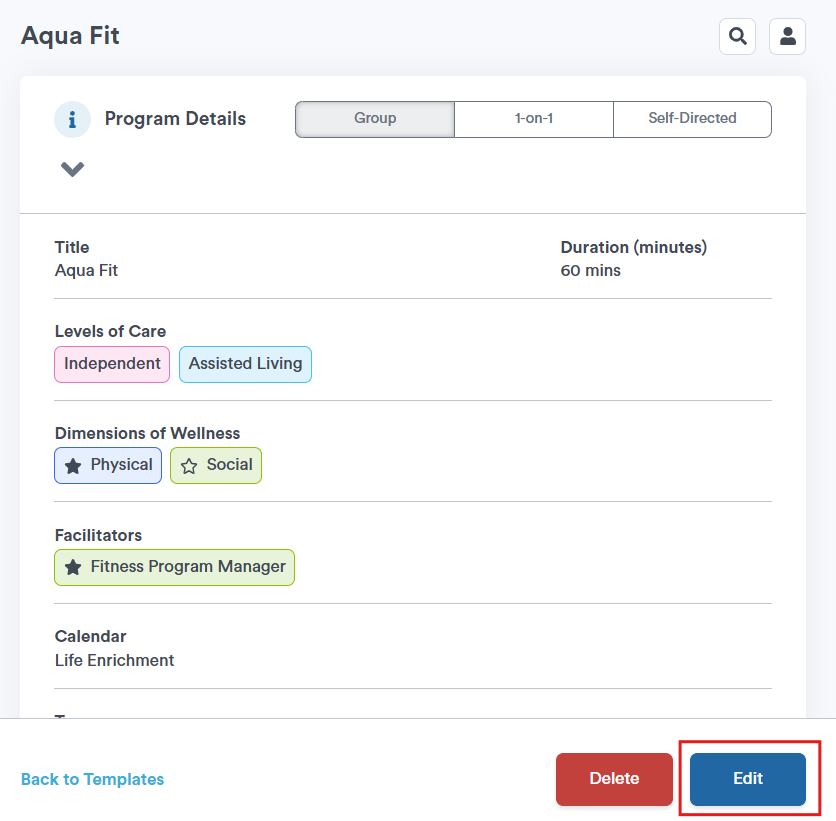
- Make the edits as needed and then click Save
- You'll be asked whether you'd like to apply your changes to existing programs created from this Template.
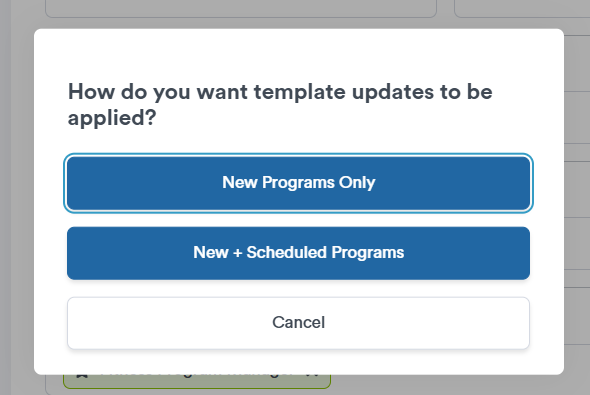
- Choose which programs to update.
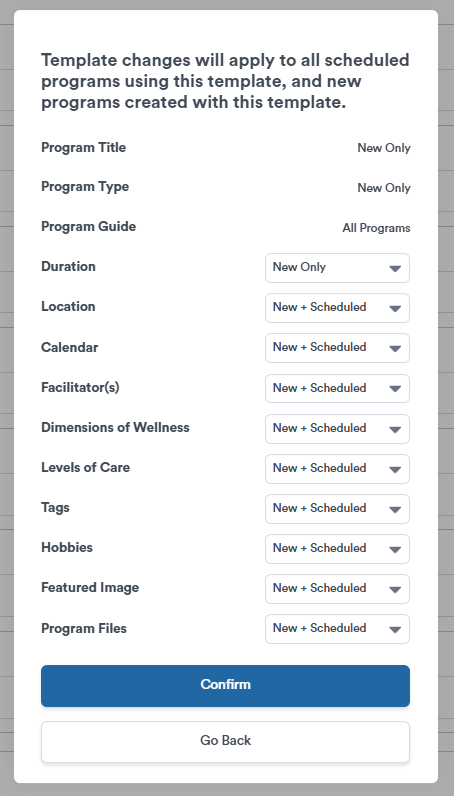
- Confirm your changes.
A few things to keep in mind:
- Changes only apply to programs created from this Template. Programs created from scratch are not affected.
- Past programs and their attendance records are not changed.
- If you've customized an individual program on your calendar (for example, changed its location for one week), applying Template changes will not overwrite these changes.