.png?width=180&height=55&name=welbi_logo_colour%20(6).png)
Employees can be assigned one, multiple, or no default Levels of Care.
When these defaults are configured, Welbi automatically pre-fills Level of Care/Home Area filters in the following areas:
- Overview
- Planning Calendar
- Attendance List
- Program Attendance
- Program Registrants (if applicable)
- Resident List
- Insights
Employees can still modify or clear these filters as needed while using the platform.
Add Default Levels of Care to a new or existing Employee
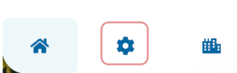
- Click Settings in the navigation bar on the bottom left side of the platform.
- Navigate to Employees.
- If adding a new employee, click the blue Add Employee button on the right hand side. If editing an existing employee, click into their name and click Edit .
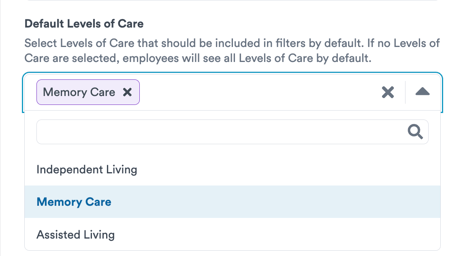
- In the Default Levels of Care field, select one or more Levels of Care/Home Area.
- Click Save.
View Default Levels of Care
The Employees table now displays each employee's default Levels of Care, making it easier for administrators to review and manage employee filter settings.
Important Notes
- Default Levels of Care/Home Areas are optional.
- Employees can be assigned one, multiple, or no default Levels of Care.
- Default filters are only applied after Levels of Care have been configured on an employee's profile.
- Employees can adjust filter selections at any time while using Welbi by going back into the Employee settings.
Expected Result
After default Levels of Care/Home Areas are assigned, supported pages will automatically pre-fill Level of Care filters based on the employee's profile settings. This reduces repetitive filtering and helps employees focus on the residents and programs most relevant to their role.